Web address
Web address puts your website on an address you own, such as www.yourbusiness.com. Your Greetfolk address keeps working and sends visitors to it. It comes with the Team plan, which is coming soon.
1. Check you can use it
Open Web address under Website. Only an owner can change it, and the owner needs two-factor authentication. If the page says Web addresses can't be connected here yet, your website stays on its Greetfolk address for now: contact Greetfolk if you'd like your own.
2. Own the domain first
You need to own the domain already. If you don't have one, buy it from a domain provider first, and keep that sign-in at hand.
3. Connect the address
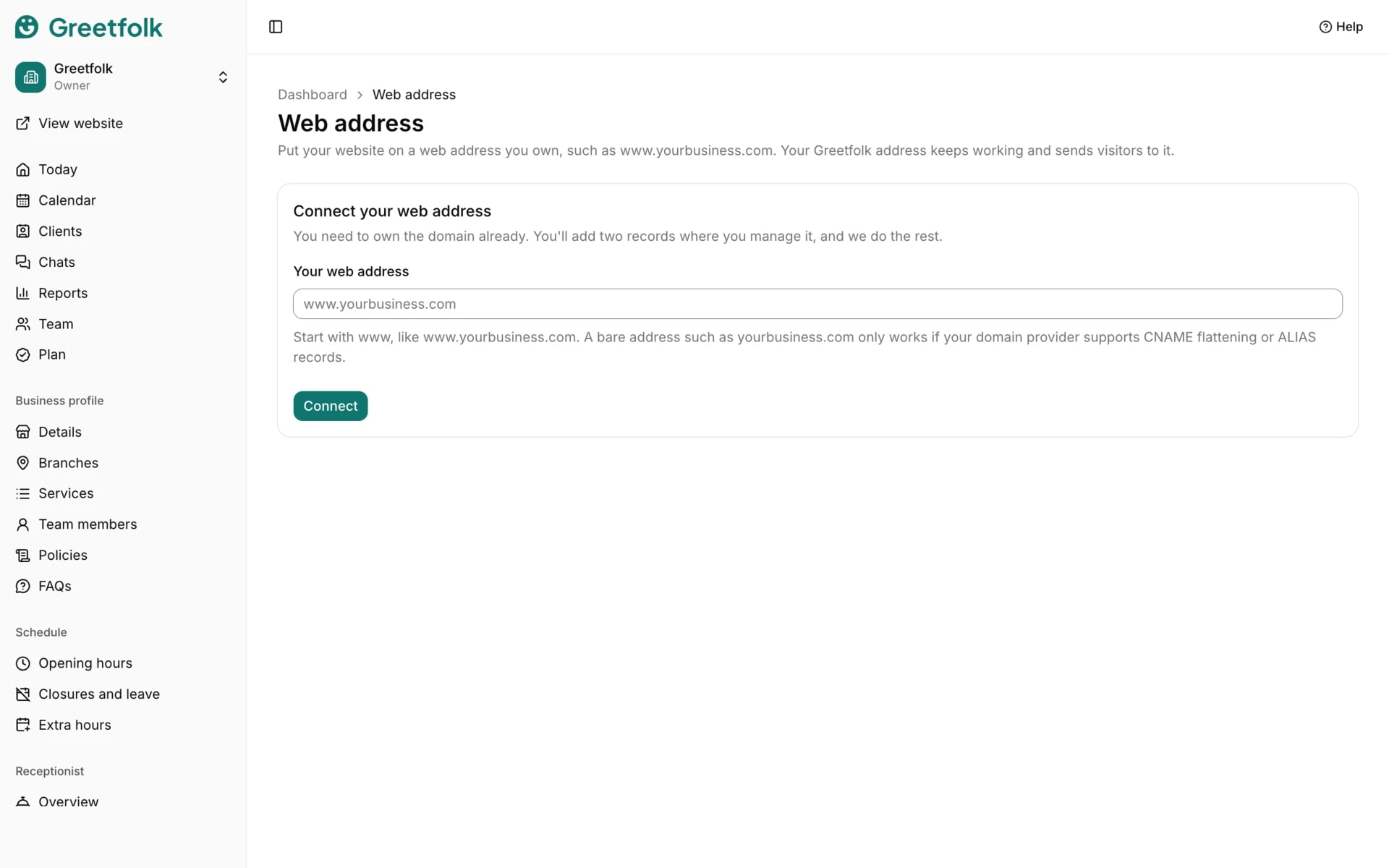
Type your web address, starting with www, and click Connect. A bare address without www only works if your domain provider supports CNAME flattening or ALIAS records.
4. Add the two records
The page shows two records. Sign in where you manage your domain, open its DNS settings and add both with the values shown: the first shows the domain is yours, the second points the address at your website. They can take up to an hour to show.
5. Wait for it to go live
We check every few minutes, and Check now checks at once. Your website stays on its Greetfolk address until both records are found and the certificate is ready. Then the page says Your website is live on this address.
6. Fix a problem
If the records aren't found within 7 days, the address is released and you connect it again. If the address later points somewhere else, your website goes back to its Greetfolk address, and you have 7 days to add the second record again.
7. Remove it
Remove web address puts your website back on its Greetfolk address. You can then delete both records at your domain provider.