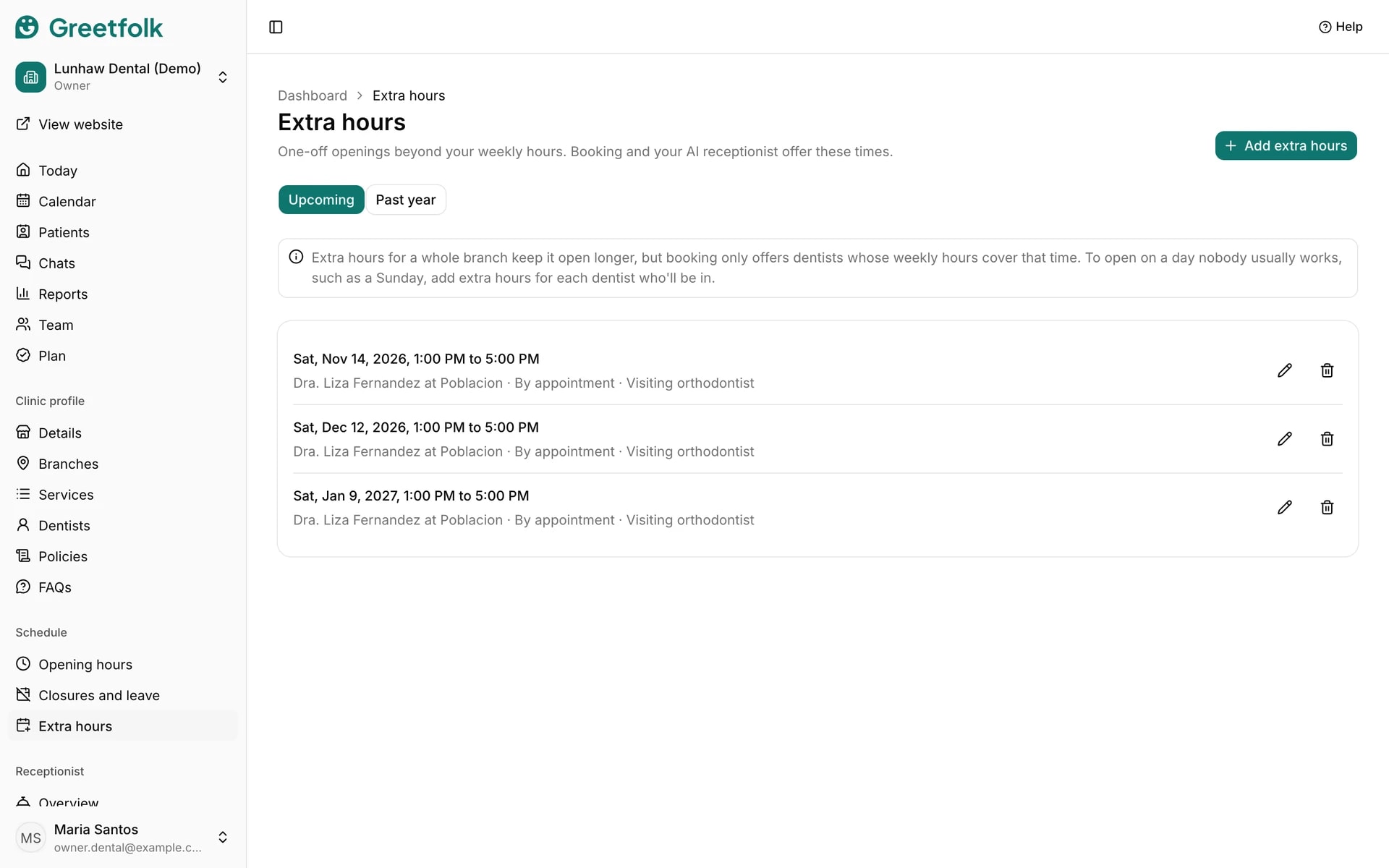
Extra hours
Extra hours are one-off openings beyond your weekly hours, such as an extra Saturday afternoon. Online booking and your AI receptionist offer these times.
The screenshots show a demo business with made-up bookings and chats.
1. Add extra hours
Open Extra hours under Schedule and click Add extra hours. Extra hours belong to a branch, so the branch must be active.
2. Choose who is in
Pick one person, or Whole branch. For the whole branch, only people whose weekly hours cover that time can be booked, so to open on a day nobody usually works, add extra hours for each person who will be in.
3. Set the date and time
Choose the date, today or later, and the opening and closing time. Choose whether the time is by appointment, walk-in only or both: online booking never offers walk-in only hours. Add a reason if you like, such as a special event.
4. Save
Click Add extra hours. Online booking can then offer the time.
5. Change or delete them
Upcoming lists what is ahead, with edit and delete buttons. Past year shows extra hours that have passed.