Once its website is published, every business has a Greetfolk email address. Email sent or forwarded to it shows up in Chats, beside your website chats, so the whole team answers from one place.
1. Find your address
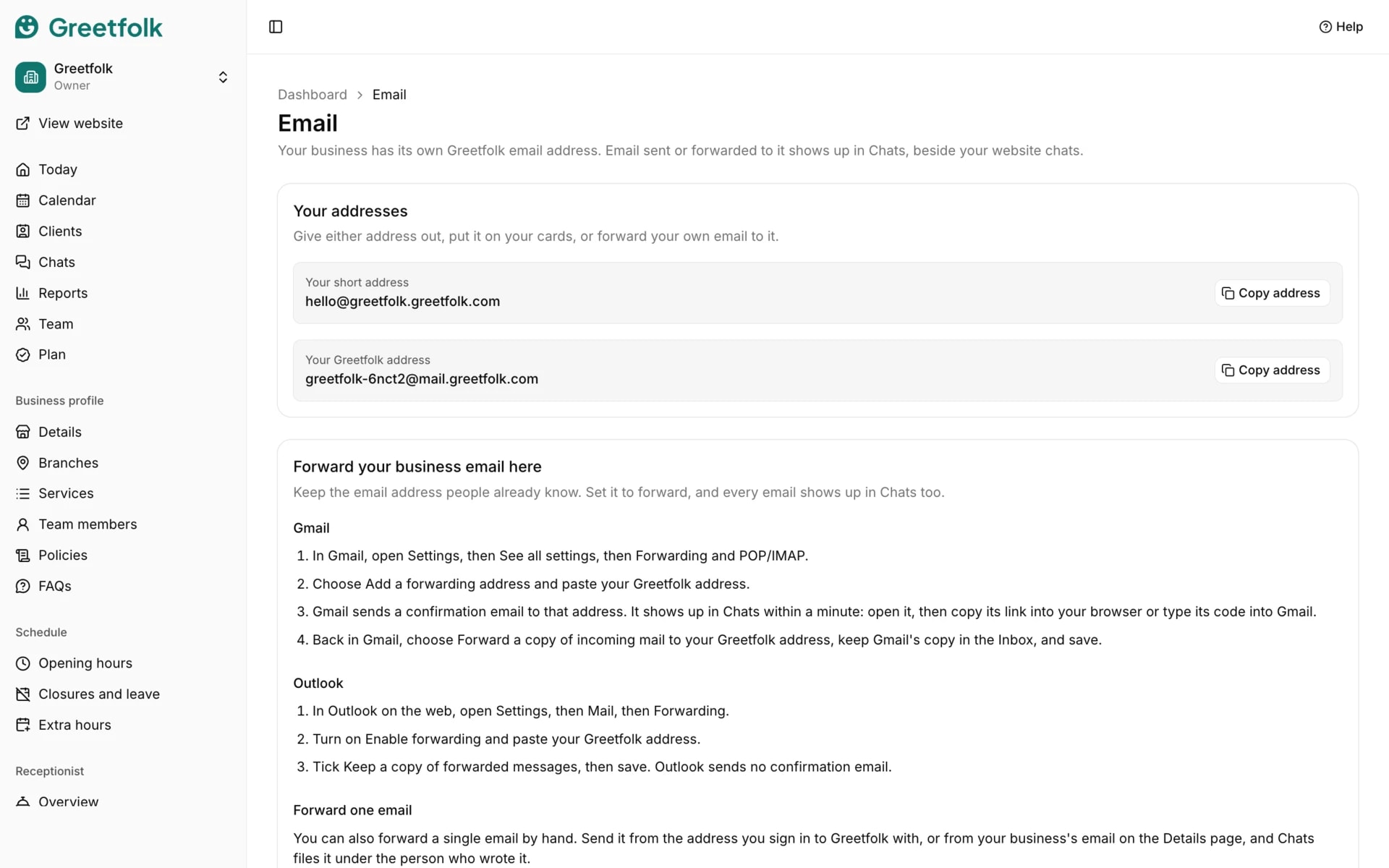
Open Email under Receptionist in the dashboard. Every published business has an address that ends in mail.greetfolk.com. Paid plans also get a short one, hello@ followed by the business's own greetfolk.com address. Copy either and give it to clients, or put it on your cards and your Facebook Page. A website that isn't published yet has no address.
2. Forward your Gmail
In Gmail, open Settings, See all settings, then Forwarding and POP/IMAP. Choose Add a forwarding address and paste your Greetfolk address. Gmail sends a confirmation email to it, which shows up in Chats within a minute: open it, then copy its link into your browser or type its code into Gmail. Back in Gmail, choose Forward a copy of incoming mail, keep Gmail's copy in the Inbox, and save.
3. Forward your Outlook
In Outlook on the web, open Settings, Mail, then Forwarding. Turn on Enable forwarding, paste your Greetfolk address, tick Keep a copy of forwarded messages, and save. Outlook sends no confirmation email.
4. Forward one email by hand
You don't have to forward everything. Forward a single email from the address you sign in to Greetfolk with, or from the business's email on the Details page, and Chats files it under the person who wrote it. If Greetfolk can't find who that was, the chat asks you for their address before you reply.
5. Read email in Chats
Each email is a chat with an Email badge, its subject and the sender's address. It waits under Waiting until someone replies or marks it handled, and a reply from the client in the same thread makes it wait again. A fresh email from the same person starts a new chat. Newsletters and automatic emails go straight to Handled, so they never bury a client. Email is shown as plain text, and attachments are links you download. The AI assistant never answers email.
6. Reply by email
On Starter and up, type your reply under the email and choose Send email. It goes out as plain text from your hello@ address, and the client's answer comes back into the same chat. A reply that couldn't be delivered is marked Not delivered. Replies carry no attachments, and you can't start a new email from Greetfolk yet.
7. Know what the free listing can do
The free listing receives email on the mail.greetfolk.com address and shows it in Chats, attachments included. Replying from Greetfolk and the hello@ address come with Starter and up. If you move back to the free listing, the hello@ address stops taking new email, and the email you already have stays.