People clients book
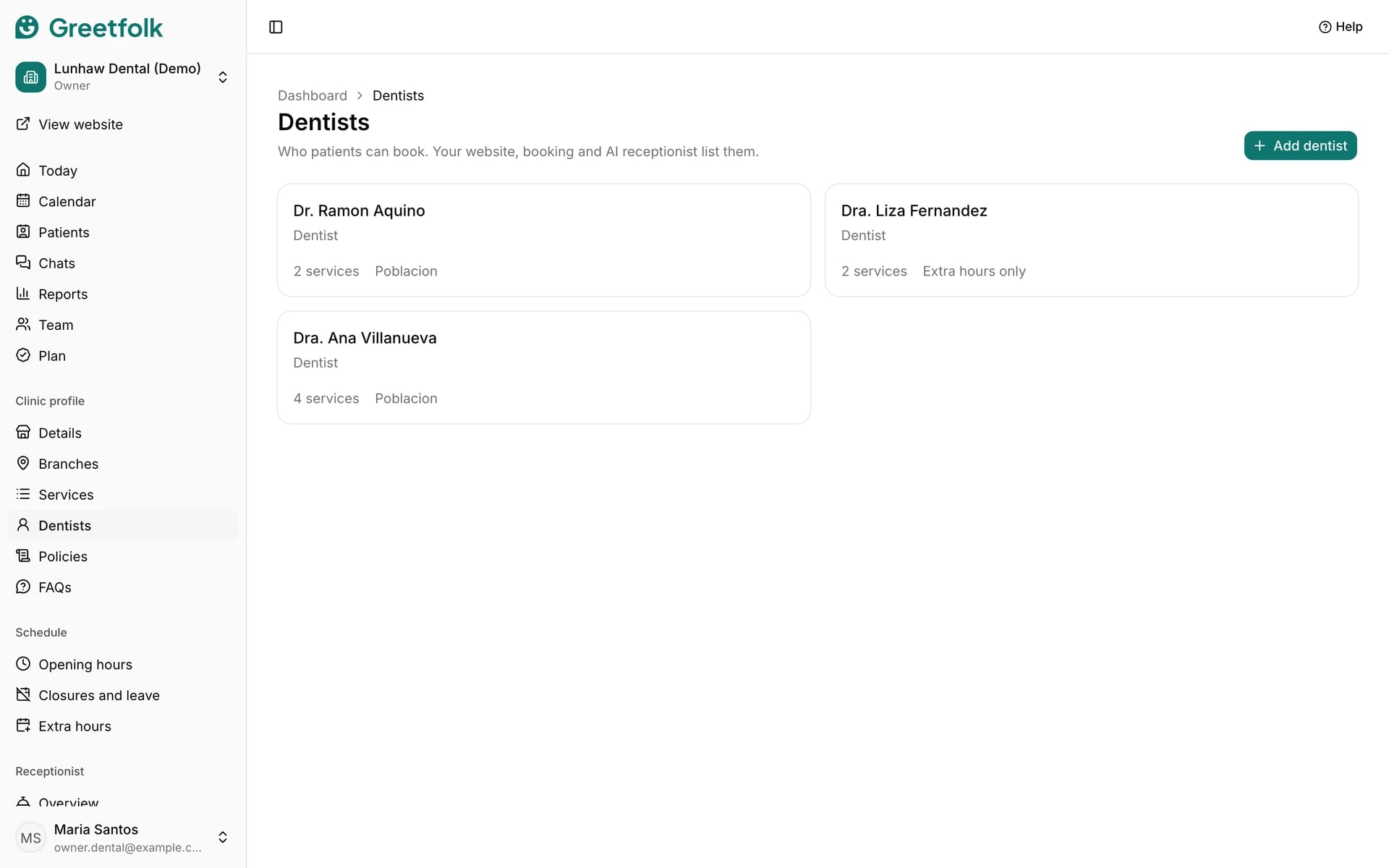
This page lists the people clients book. In your dashboard it carries your business's own word for them. Each person has details, a photo and the weekly hours that online booking offers.
The screenshots show a demo business with made-up bookings and chats.
1. Add someone
Open the page in the dashboard menu and click the Add button. Enter the first and last name and choose the profession, then save. The new person opens on their own page.
2. Fill in their details
Add their credentials, the languages they speak, the services they offer and an About text, which shows on their page on your website. Draft with AI can write the About text, and it stays off your live site until you approve it. Click Save details.
3. Set their weekly hours
Under Weekly hours, add blocks for each day with the branch they work at and whether the block is by appointment, walk-in only or both, then click Save hours. Online booking offers only by-appointment times inside the branch's opening hours. Hours to confirm marks hours we suggested: check them and save.
4. Add a photo
Under Photo, click Upload a photo or Choose from your gallery, tick the consent box and describe the photo. It shows on the team cards and on the person's page. Without a photo the website shows their initials.
5. Know what Paused means
Your plan sets how many bookable people the website shows. Extra ones are marked Paused: they stay in the dashboard but are left off the website and online booking.
6. Stop bookings for someone
Untick Open for bookings to make them inactive. That removes their photo from your site. Deleting someone asks first, and deletes their weekly hours, leave and links to services with them.
7. Give them their own sign-in
To let someone see their own appointments, invite them from the Team page and link the sign-in to their profile.