Search & sharing
Search & sharing shows how your pages look in Google and when shared on Messenger, and what Google and AI assistants look for. It can't promise a ranking. It makes sure nothing they need is missing.
The screenshots show a demo business with made-up bookings and chats.
1. Read the checklist
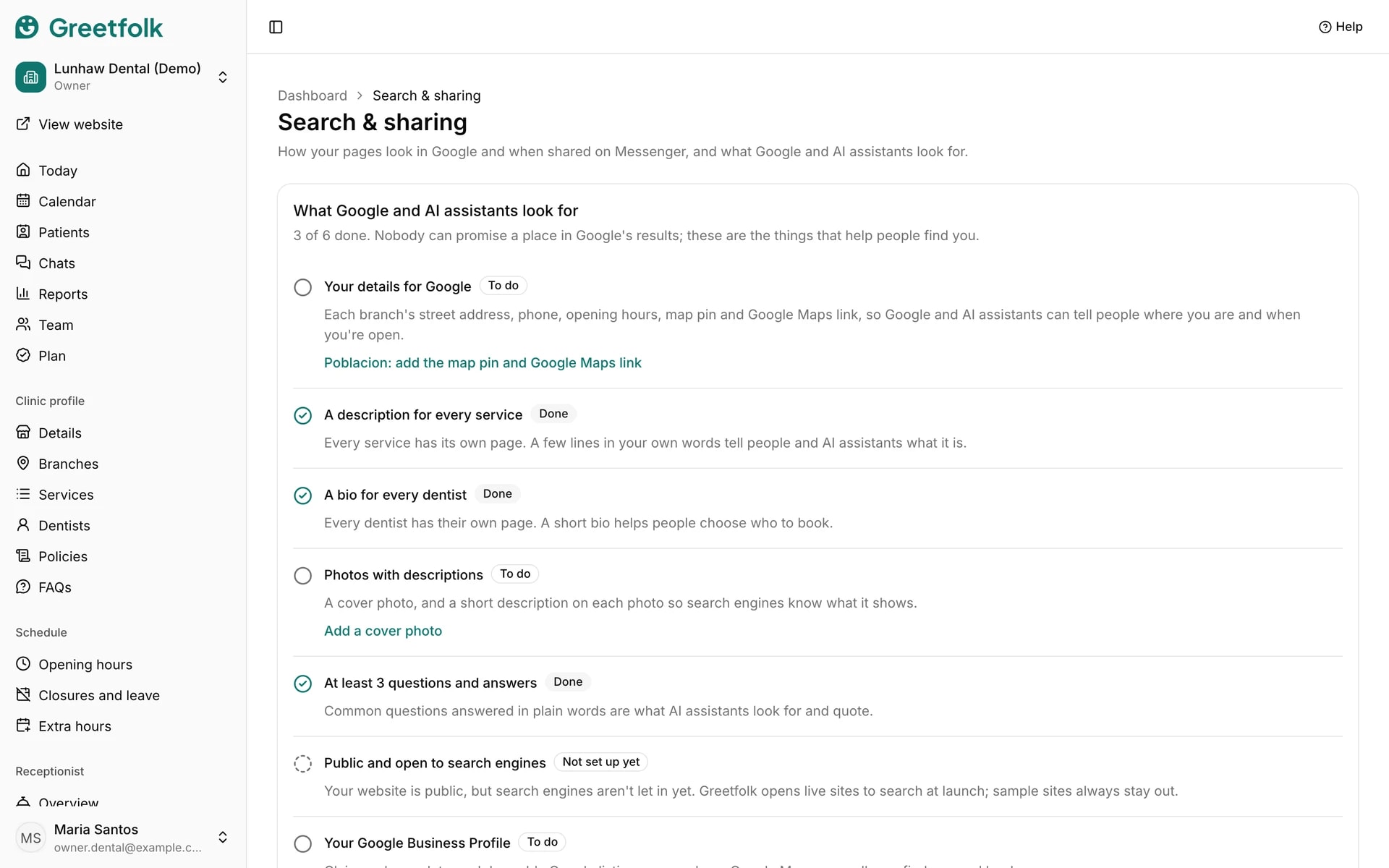
Open Search & sharing under Website. What Google and AI assistants look for lists each item as done or missing, such as branch details, service descriptions, bios, photos with descriptions and at least 3 questions and answers. Each gap links to the page where you fix it.
2. Publish first
Search engines only see a published website, so some checks say Checked once your website is live. Searches and clicks from Google show once your website is live and Google has data.
3. Open one of your pages
Your pages lists the home page, the FAQ page and a page for each service, person and branch. Click one to see its Google result and its Messenger share card beside the form.
4. Write a title and description
Type your own title and description, or leave a box empty to use the suggested words shown in it. The page warns when a title or description is too long to show in full. Click Save, and your website shows the change at once.
5. Go on to your Google listing
One item opens the Google listing steps, which help people on Google Maps call you, find you and book.