Chats
Chats is your team's inbox: website chats the AI assistant passed to your team, Messenger chats it passed on, and email sent to your Greetfolk address. Owners and staff see it.
The screenshots show a demo business with made-up bookings and chats.
1. See what is waiting
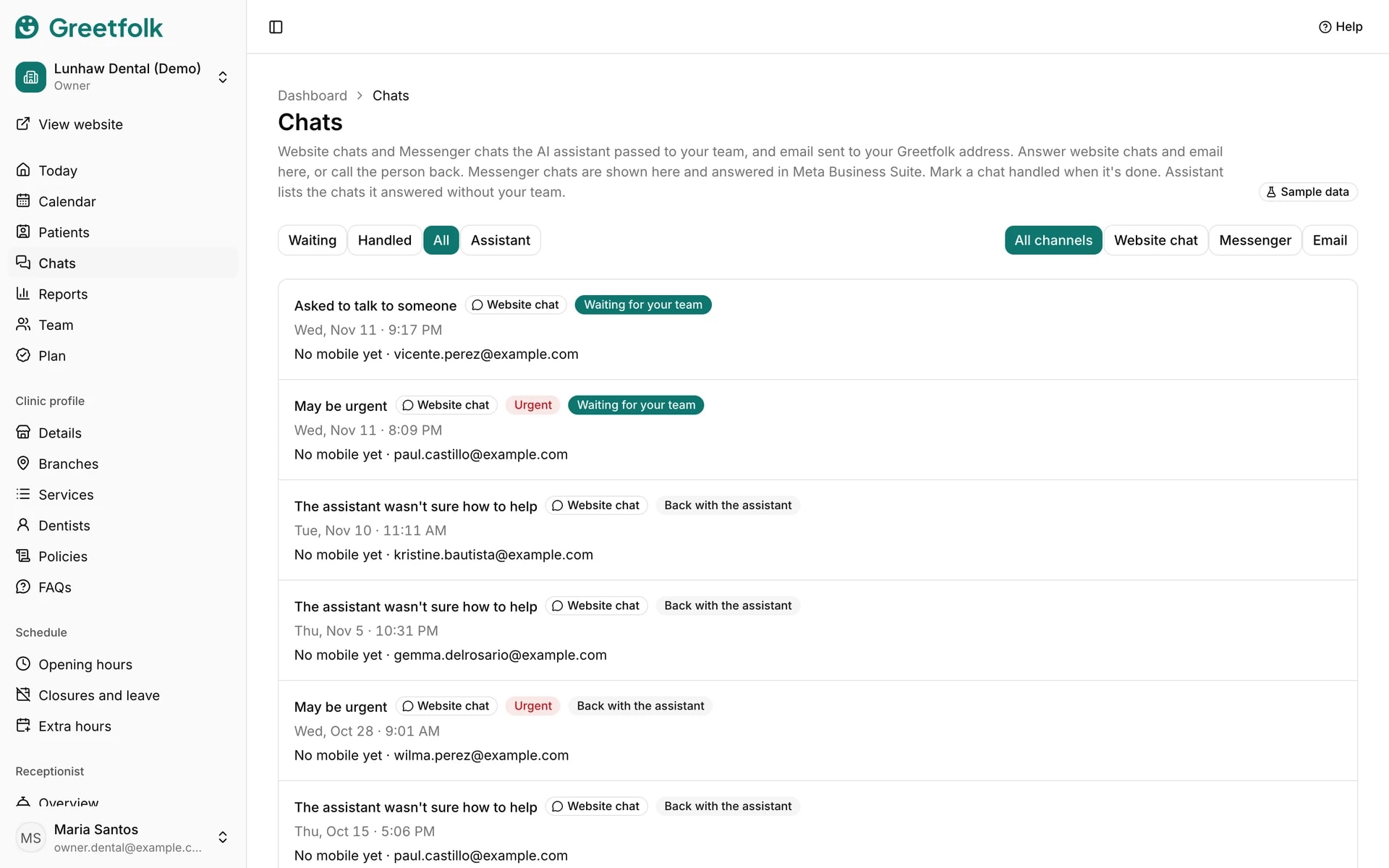
Open Chats. Waiting lists the chats your team still has to answer, with why each was handed over and how to reach the person. Handled shows closed chats and All shows both. Assistant is a separate list, explained below. Choose a channel to see only website chats or only email. Urgent chats are marked.
2. Read a chat
Click a chat to read the whole conversation. Each line shows who wrote it and when: the visitor, the assistant or your team. The top shows the visitor's email and mobile, with buttons to email or call them.
3. Reply to a website chat
Type under the chat and click Send reply. The visitor reads it in the chat on your website. Enter sends and Shift+Enter starts a new line. New lines from the visitor show up while the page is open.
4. Pause or hand back the assistant
While your team is answering, the assistant is paused in that chat. Pause the assistant stops it yourself, and Hand back to the assistant lets it answer again.
5. See what the assistant answered on its own
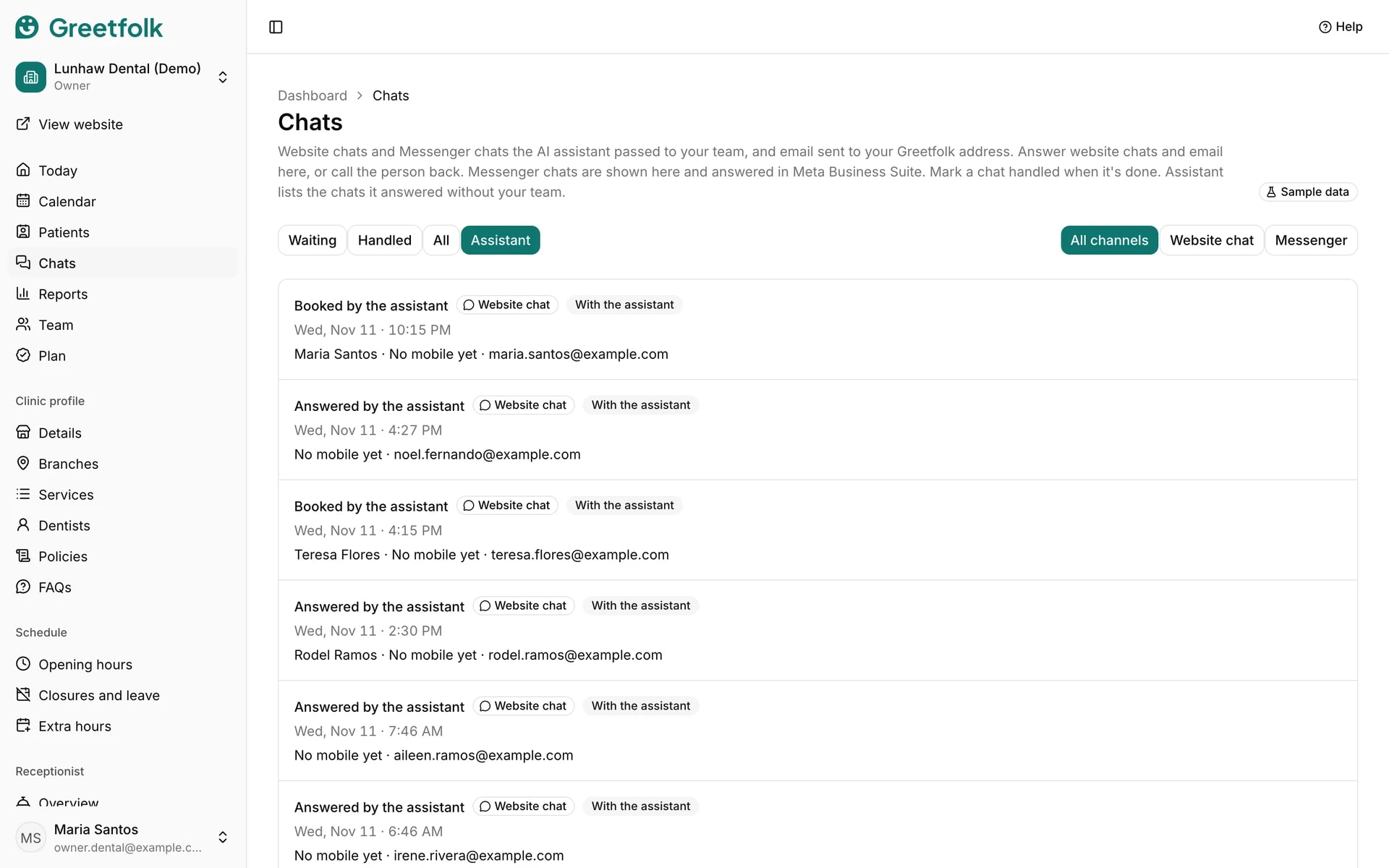
Assistant lists the website and Messenger chats the AI assistant answered without your team. Each one says Answered by the assistant, or Booked by the assistant when it made a booking in that chat. Click one to read what was asked and what it answered. These chats are for reading: there is no reply box, and nothing in this list is waiting for you. You can still email or call the person from the chat. If an answer was wrong, correct the page it came from, such as Services, Policies, FAQs or Facts.
6. Reply to an email
An email thread shows its subject, sender and attachments as download links. On a paid plan, type your reply and click Send email: it goes out as plain text in the same thread and the answer comes back here. If the sender is marked Unverified sender, check the address before you reply.
7. Mark a chat handled
When you have followed up, click Mark handled. The chat moves to Handled and shows who handled it and when. Reopen puts it back under Waiting, and a new reply in an email thread makes it wait again.