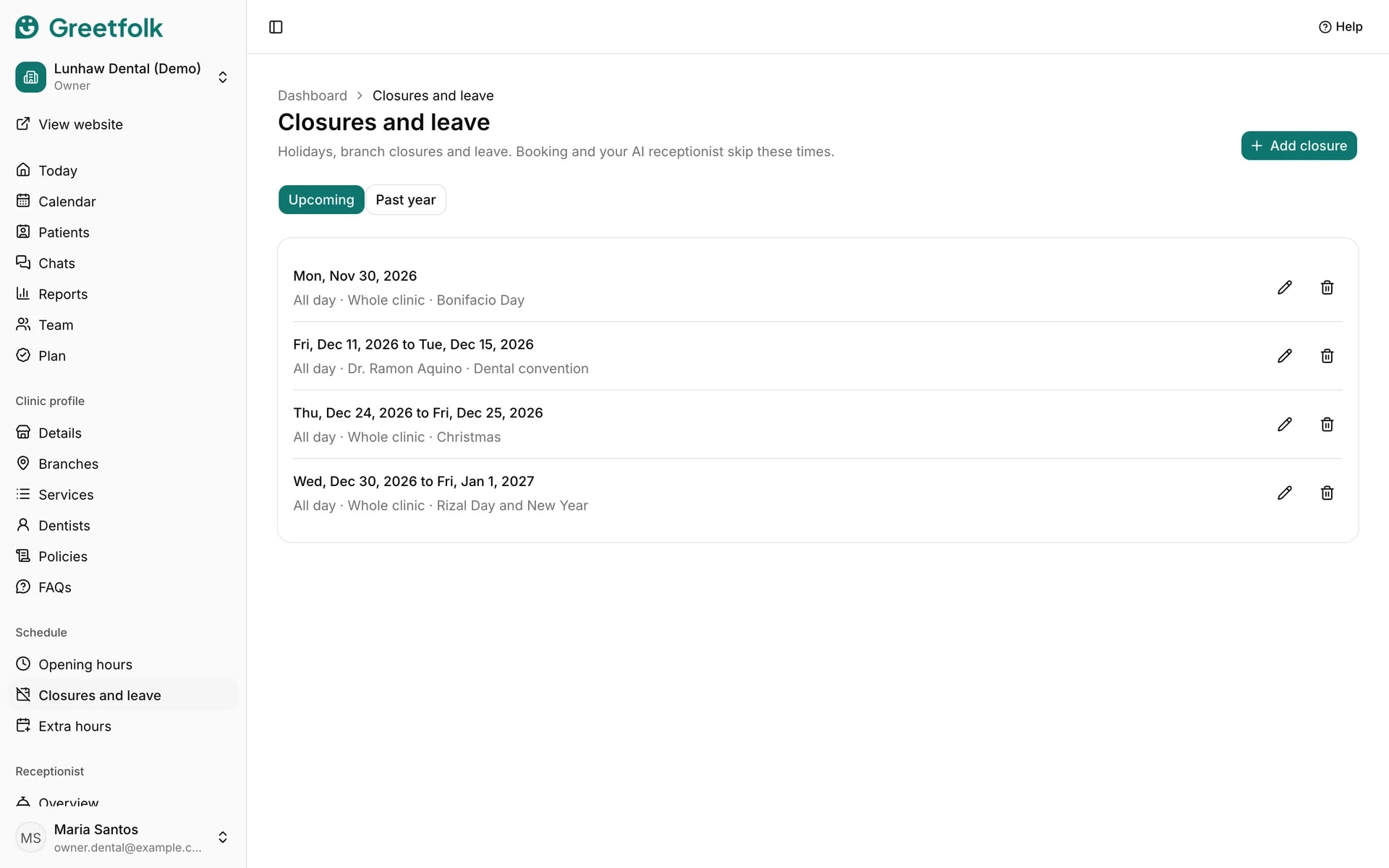
Closures and leave
Closures and leave cover holidays, branch closures and one person's time off. Online booking and your AI receptionist skip these times.
The screenshots show a demo business with made-up bookings and chats.
1. Add a closure
Open Closures and leave under Schedule and click Add closure. Choose the whole business or a branch for a holiday, or one person for their leave.
2. Pick the dates
Choose the first and last day. Leave it all day, or set Closed from and Closed until, and those times apply on each day. Add a reason if you like, such as a holiday or a training day. A closure can't be in the past.
3. Check the bookings inside it
Before you save, Greetfolk checks for bookings that fall inside the closure, says how many there are and links to the first one's day in the Calendar. Those bookings stay, so tell those people or move them.
4. Save it
Click Add closure. If it covers today, Greetfolk asks first. Booking stops offering that time straight away.
5. Change or delete one
Upcoming lists what is ahead, with edit and delete buttons. Deleting a closure makes booking offer that time again straight away. Past year shows closures that have ended, which can only be deleted.