Opening hours
Opening hours set each branch's normal week. Your website, online booking and AI receptionist all use them, and closures and extra hours handle the exceptions.
The screenshots show a demo business with made-up bookings and chats.
1. Open the page
Open Opening hours under Schedule in the dashboard. Each branch has its own week. Owners and staff can edit it.
2. Set a day's hours
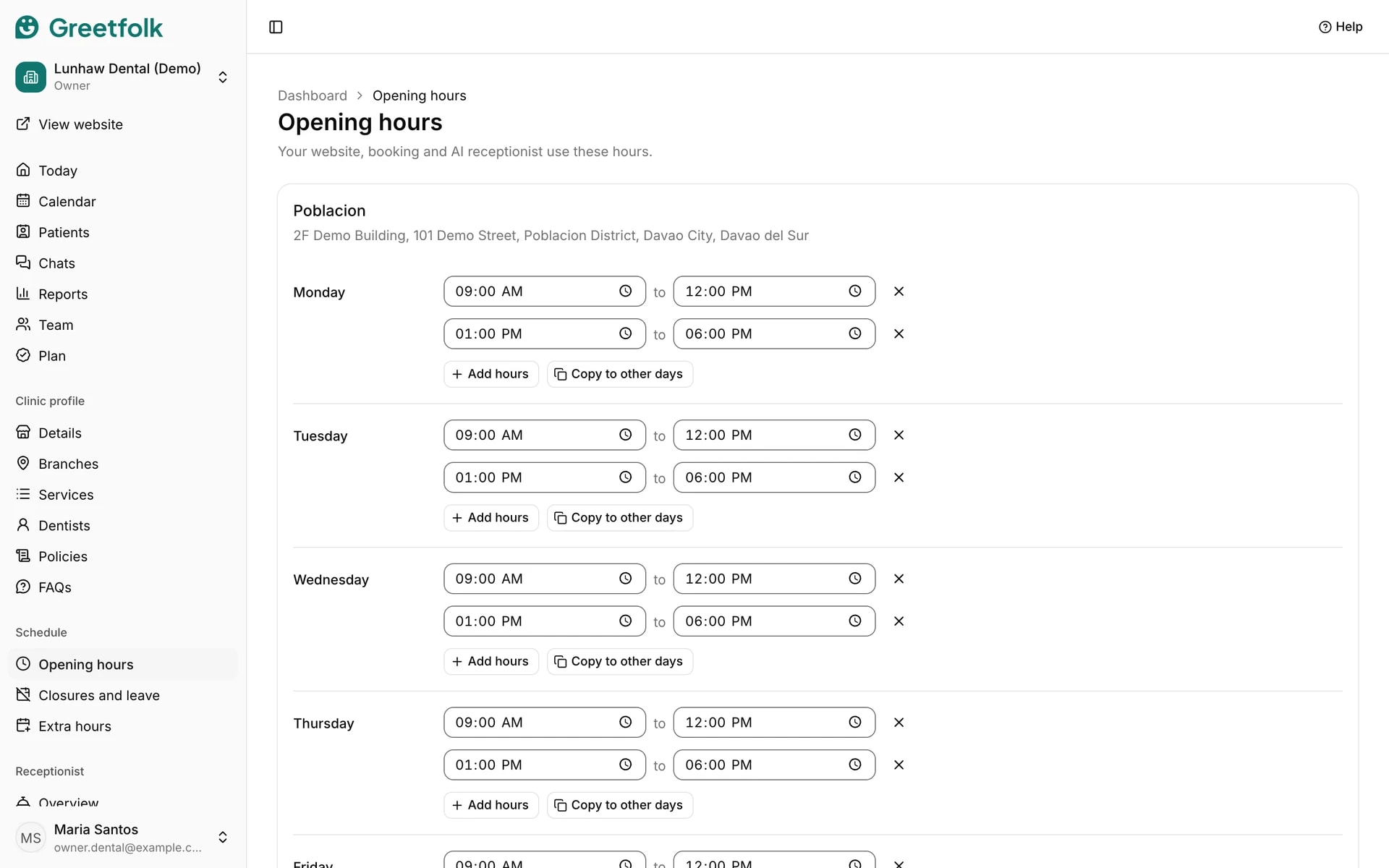
Give each day an opening and a closing time. A day with no hours shows as Closed.
3. Split a day
Add hours on a day adds a second block, for example after a lunch break. The remove button beside a block takes it away. Blocks on one day can't overlap.
4. Copy a day
Copy to other days copies one day's hours to Weekdays or to Every day, so you set a usual day once.
5. Save
Click Save hours for the branch. Online booking only offers times inside these hours, and inside the weekly hours of the person being booked.
6. Handle the exceptions
For a holiday or someone's leave, add a closure. To open on a day or time outside the normal week, add extra hours.