Google listing
Google listing walks each branch through claiming and completing its Google Business Profile, so people on Google Maps can call you, find you and book. Greetfolk never signs in to Google for you: you do each step there and tick it here.
The screenshots show a demo business with made-up bookings and chats.
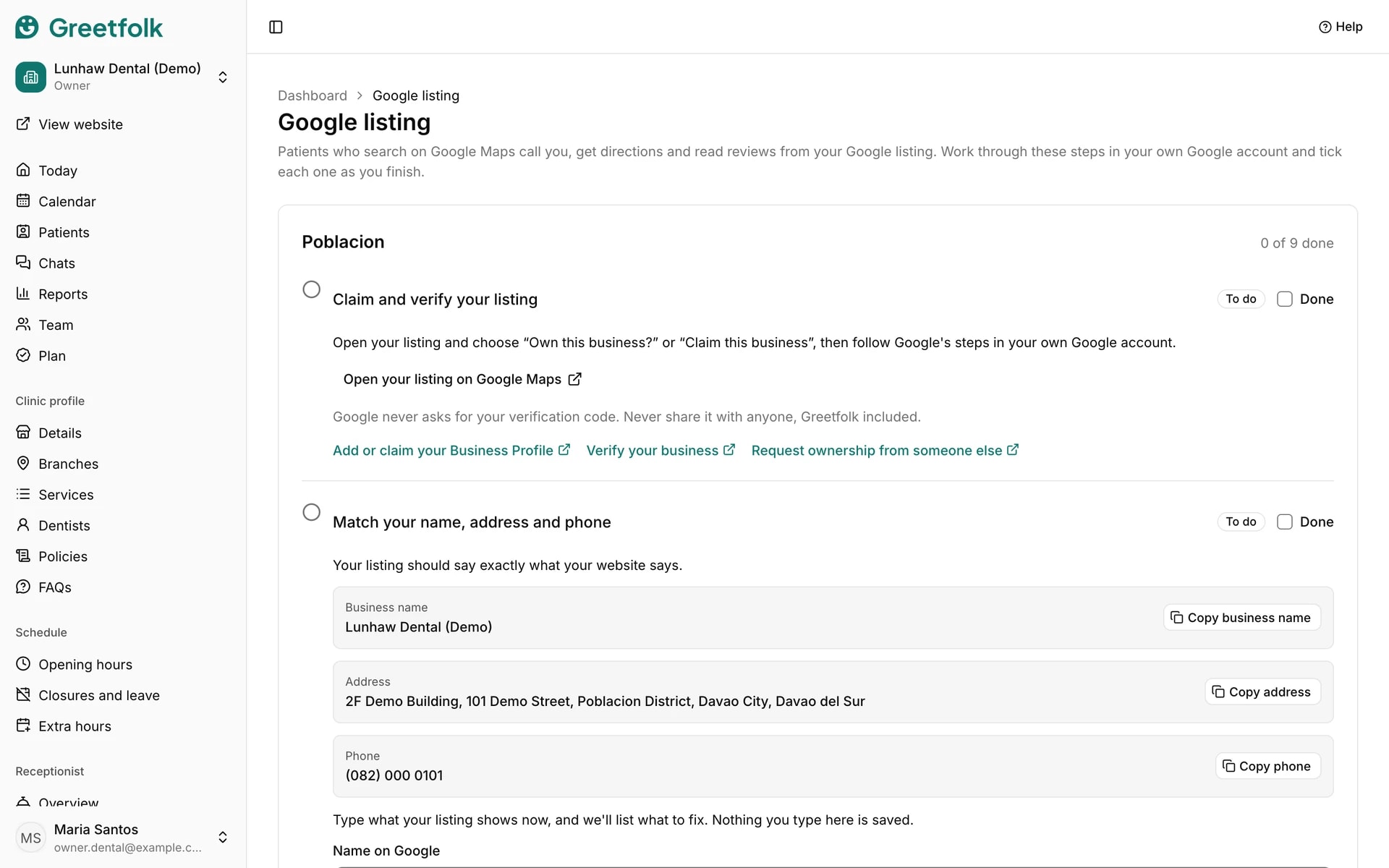
1. Open the steps for a branch
Open Google listing under Website. Each active branch has its own steps, each with a link to Google's help.
2. Claim and verify your listing
Add or claim your Business Profile on Google and verify it. If someone else owns it, Google's help explains how to request ownership.
3. Match your name, address and phone
Copy your details from the page with the copy buttons and paste them into Google, so both say exactly the same. Then choose your categories and write a short description: under 750 characters, with no links, prices or promos.
4. Check for differences
Type what Google shows into the compare form: name, address, phone and hours. Click Compare and the page lists what to fix on Google, or says Everything matches. Nothing you type there is sent or saved.
5. Set your hours and special hours
Set your regular hours on Google to match the ones shown, and add your coming closures as special hours.
6. Add your website and booking link
In Edit profile, paste your website. Under Bookings, add your booking link as the appointment link and make it the preferred one. Both steps wait until your website is published.
7. Add photos and your review link
Add at least three photos of the outside and three of the inside. Copy your review link from your Business Profile, save it here, and share it with happy clients.
8. Tick Done as you go
Tick Done on each step when you finish it, so the team sees what is left.