Calendar
The Calendar is where the front desk books, moves, checks in and cancels appointments. Every change is written into the appointment's history, so the team can see who did what.
The screenshots show a demo business with made-up bookings and chats.
1. Read the calendar
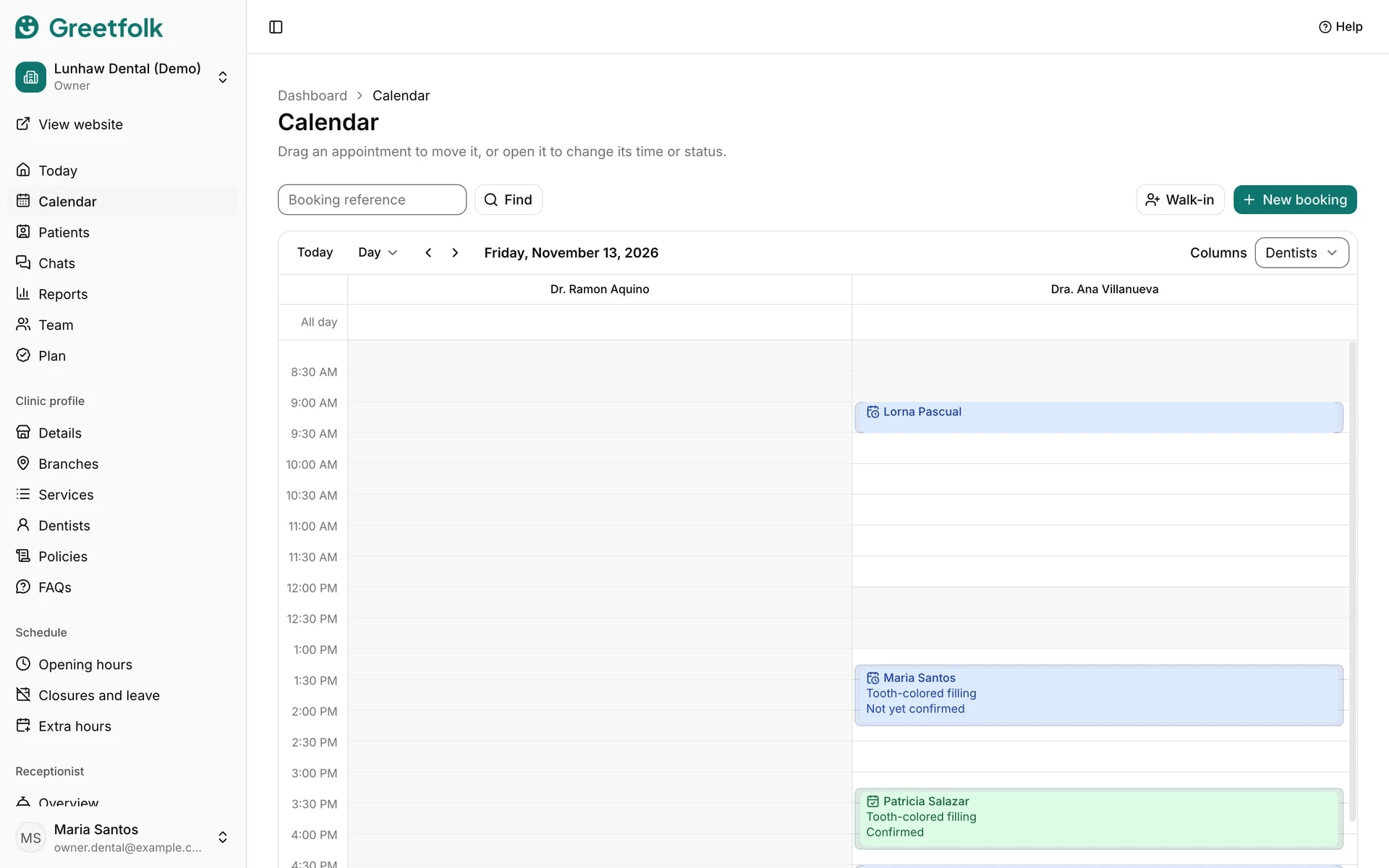
Each person clients book has a column, and colours with an icon show each appointment's status. Use Today and the arrows to change the day, and switch between Day, Week and List. In Day view, Columns switches between people and the rooms or stations they work in. Shaded hours are outside that column's working hours.
2. Check someone in
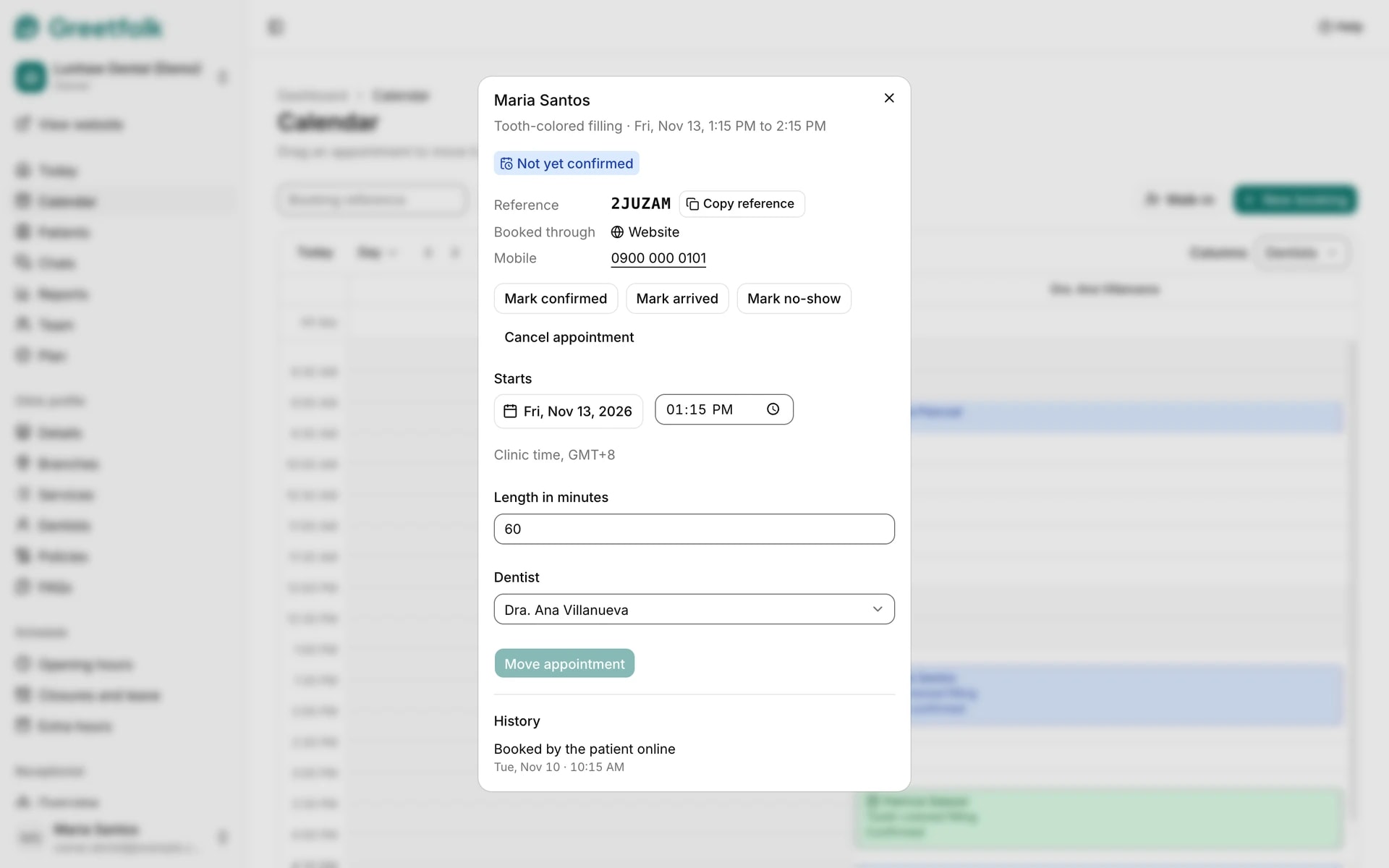
Click an appointment to open its details: the reference, how it was booked, the mobile number, the time and the history. Mark it arrived when the person walks in and completed after the visit. Confirmed and no-show appear when they apply.
3. Book an appointment
Click New booking. Enter the first name and mobile, choose who they see, the service and the start time, then click Book appointment. A mobile number we already know puts the booking under that person. With an email address they get a confirmation with a link to change or cancel it.
4. Add a walk-in
Click Walk-in, type the name, choose who they see and the service, and click Add walk-in. It starts now.
5. Handle a double booking
If the time is already taken, Greetfolk names the clash and asks first. Book anyway saves it and marks both appointments Double-booked so everyone sees the overlap. Go back lets you pick another time.
6. Move an appointment
Drag the appointment to a new time or column, or open it, change the start, the length or the person, and click Move appointment. If the move is refused, it goes back and says why.
7. Cancel an appointment
Open the appointment, click Cancel appointment and confirm, or click Keep it. The time becomes free for other bookings, and the history keeps the record.
8. Find a booking by its reference
Type the reference a caller reads out into Booking reference and click Find. The calendar jumps to that day and opens the appointment. Copy reference in the details copies it for a message.
9. Know when booking is off
With no active branch the Calendar still shows appointments, but New booking and Walk-in are off until an owner makes a branch active.