Reports
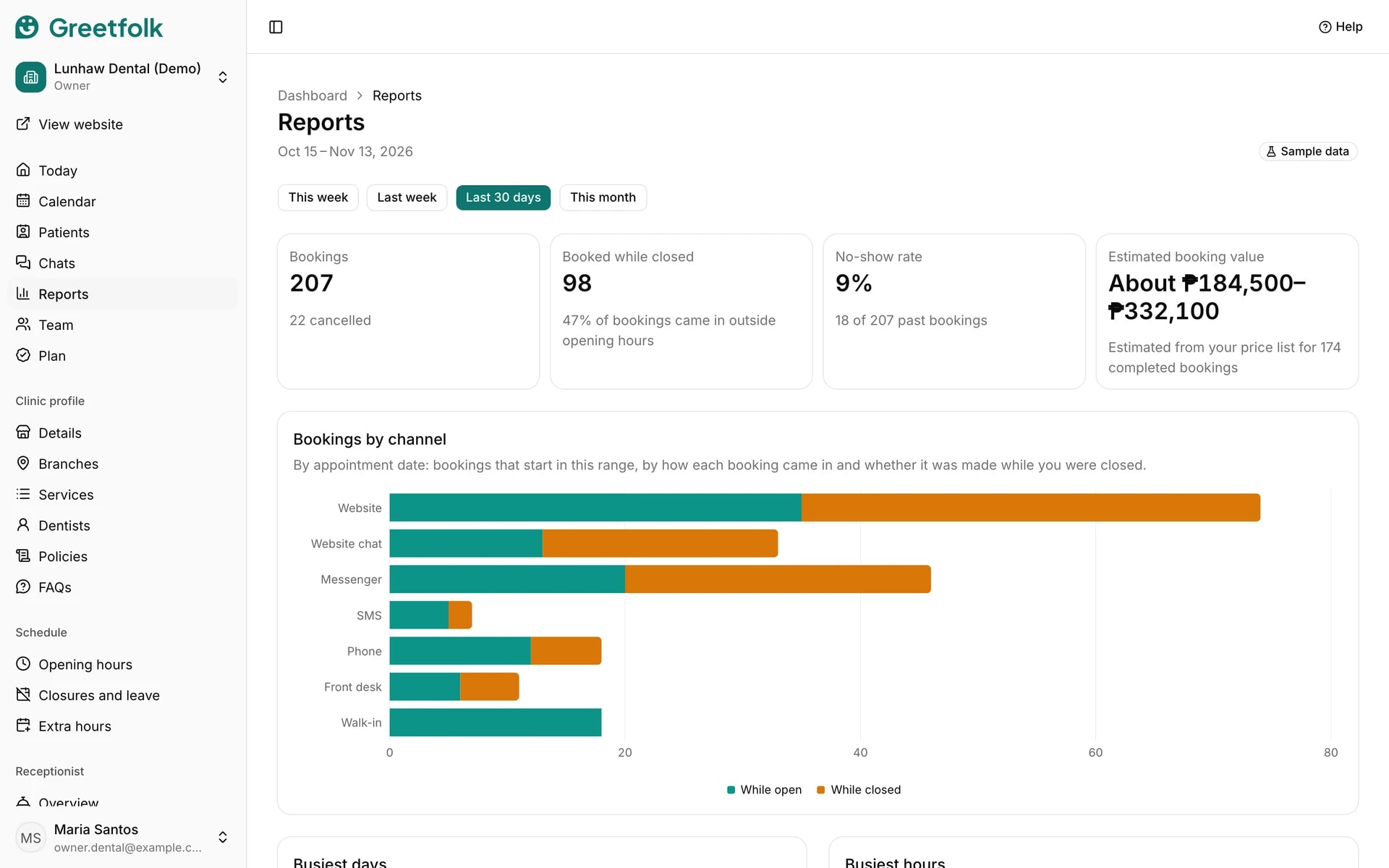
Reports shows how many bookings came in, how many were made while you were closed, the no-show rate and an estimated booking value. Reports come with every paid plan.
The screenshots show a demo business with made-up bookings and chats.
1. Choose the range
Open Reports and pick This week, Last week, Last 30 days or This month. The numbers count bookings by the day the appointment starts.
2. Read the main numbers
The top figures cover bookings, Booked while closed, no-shows and the Estimated booking value, which is worked out from your price list for the completed bookings.
3. See where bookings come from
Bookings by channel splits them by how each one came in, such as the website, the website chat, the phone, the front desk and walk-ins. Below it are the busiest days and hours, then services and the people clients book.
4. Check what the assistant did
Each chat channel has a card: how many chats the AI assistant answered without staff, how many it handed to your team and why, how many bookings it made in chat, and how fast the first reply usually was.
5. Know who sees what
Owners and staff see the whole business. Someone clients book sees the same report for their own appointments only, once an owner has linked their sign-in to their profile on the Team page.
6. Understand an empty report
No bookings in this range means nothing starts in the dates you picked, so try a wider range. On the free listing the page says Reports come with every paid plan.