Chat
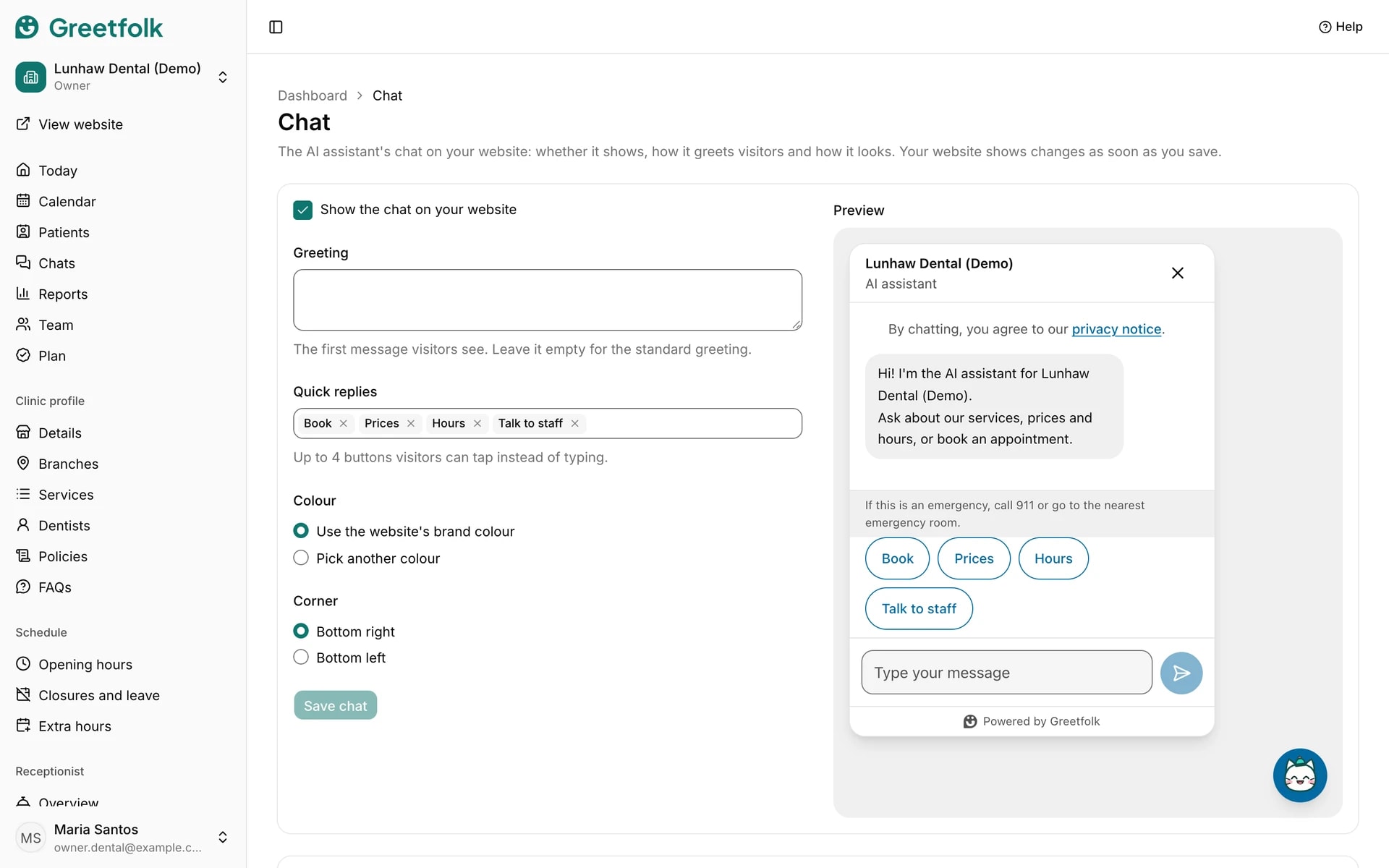
Chat sets up the AI assistant's chat on your website: whether it shows, how it greets visitors and how it looks. Your website shows changes as soon as you save.
The screenshots show a demo business with made-up bookings and chats.
1. Turn the chat on or off
Open Chat under Receptionist. Show the chat on your website puts the chat button on every page. Untick it to remove the chat.
2. Write the greeting
The greeting is the first message visitors see. Leave it empty for the standard greeting. The chat always opens by saying it is an AI assistant for your business, so don't repeat that line.
3. Choose quick replies
Quick replies are up to 4 buttons visitors can tap instead of typing, such as booking or talking to staff.
4. Pick the colour
Use the website's brand colour, or pick another colour for the chat. The preview beside the form shows the result. It is only a picture, so you can't type in it.
5. Save
Click Save chat.
6. Put the chat on a website you already have
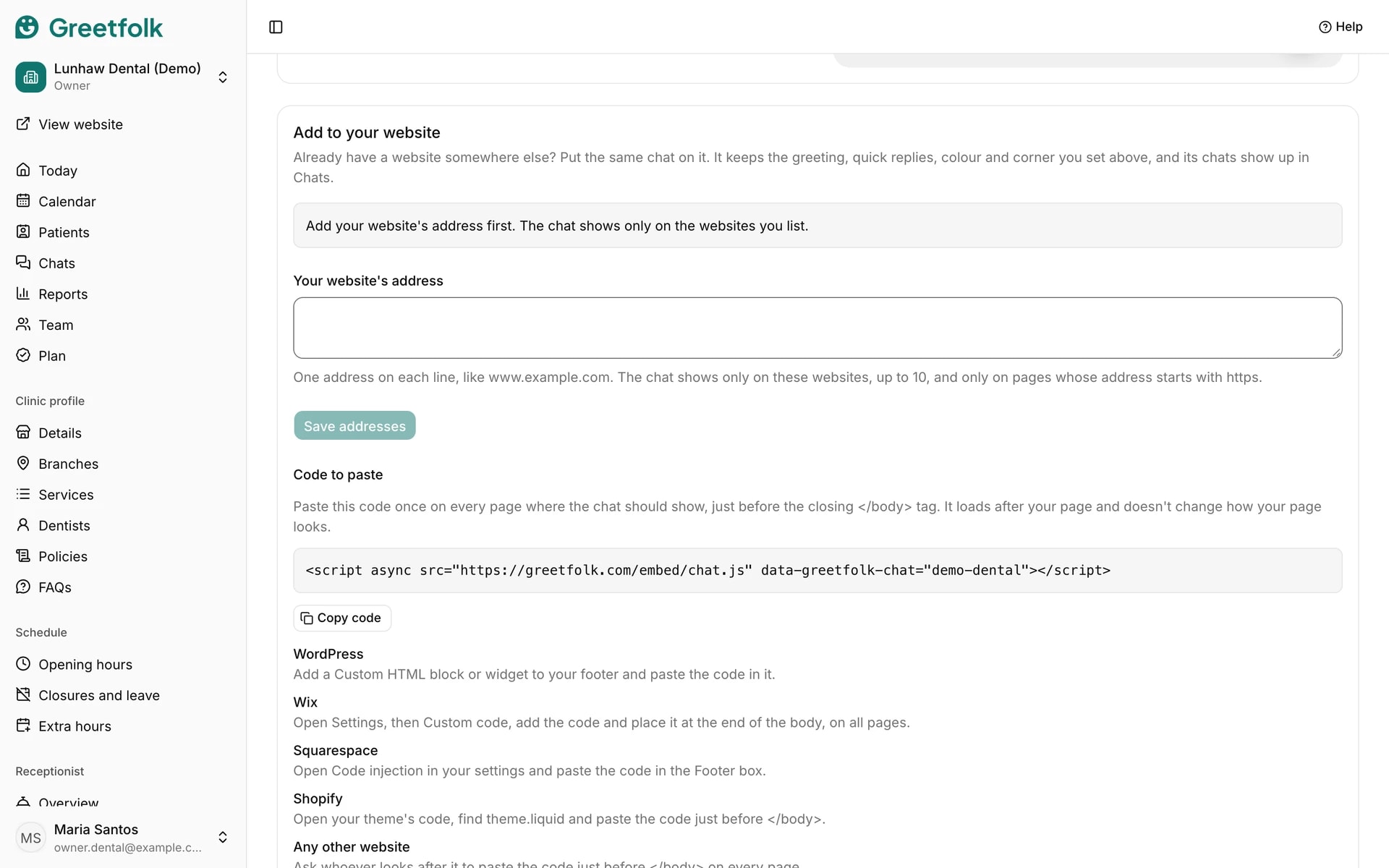
If you have a website somewhere else, the same chat can show there. Under Add to your website, type that website's address, one on each line, and click Save addresses. The chat shows only on the websites you list, and only on pages whose address starts with https. If you paste the address of one page, the whole website it is on is listed, so on a website you share with others, such as a page on a site builder's own address, their pages could show your chat too. Then click Copy code and paste the code on every page where the chat should show, just before the closing </body> tag. The page lists where to paste it in WordPress, Wix, Squarespace and Shopify.
7. Know how the chat behaves on your other website
It is the same chat with the same greeting, quick replies, colour and corner, and it carries a small Powered by Greetfolk link. It answers only while your Greetfolk website is published and the chat is turned on. Links in the chat, such as booking, open your Greetfolk pages in a new tab. Its chats show up in Chats, marked From your own website with the page the visitor was on. To take the chat off a website, remove its address here or remove the code from that website.
8. Know what visitors go through
Before chatting, a visitor confirms their email with a 6-digit code. The assistant answers from your profile, policies, FAQs and facts. Talk to staff passes the chat to your team, and you answer it under Chats.
9. Understand a stopped chat
If the assistant has used its allowance, it asks visitors to call you instead and answers again later, and the page says when. On an unpublished website the preview's chat has a small test allowance. Publishing turns the assistant back on.