Home page
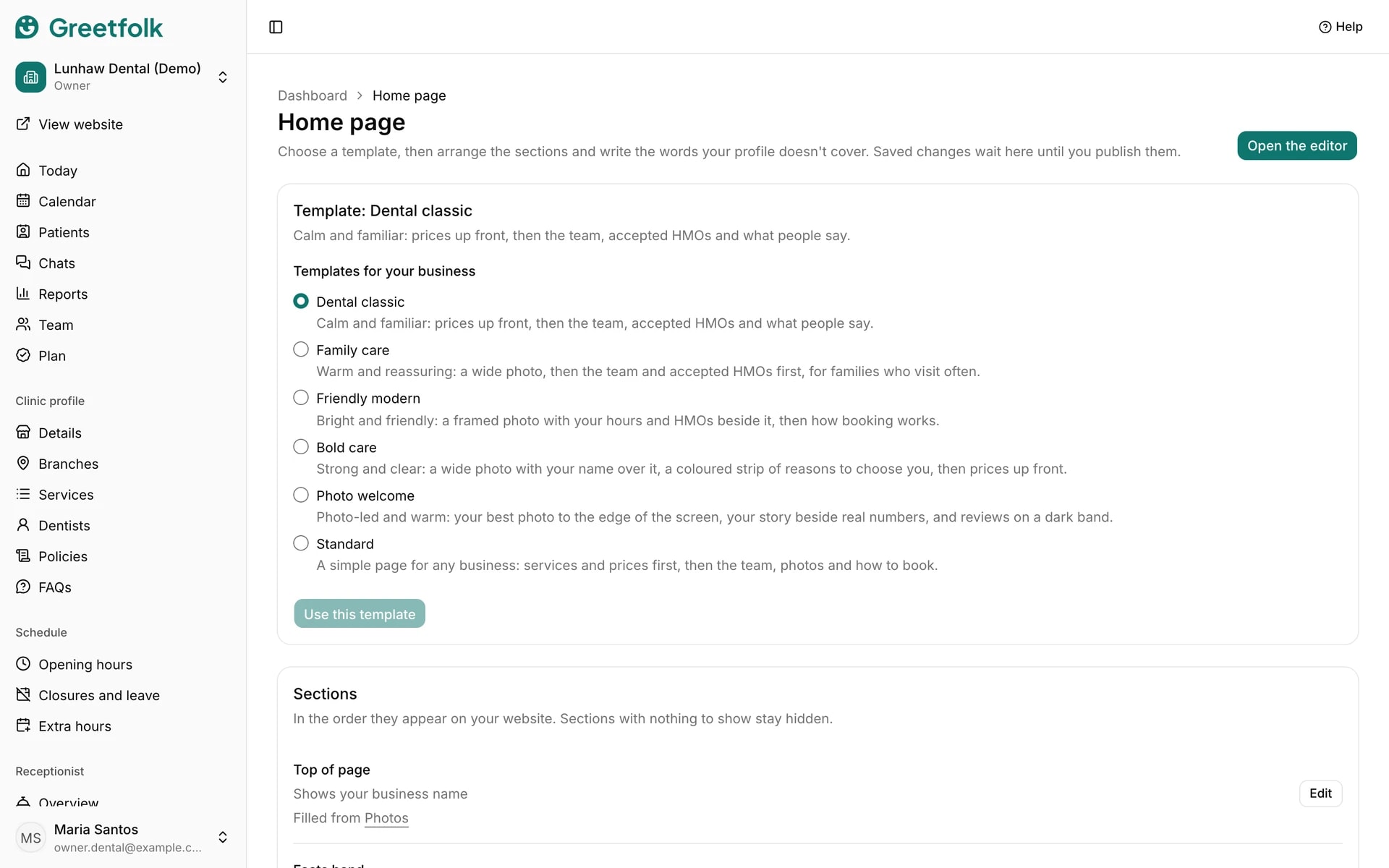
The Home page is a list of sections, such as the welcome at the top, your services, your team, reviews and how to find you. You choose a template, then edit, move or hide each section.
The screenshots show a demo business with made-up bookings and chats.
1. Choose a template
Open Home page under Website. Pick a template and click Use this template. A template sets which sections you start with, their order and their style. Your facts, such as services, hours and team, always come from your profile.
2. Edit a section from the list
Each section in the list can be moved up or down, hidden, or opened to edit its words, reviews or photo. A section with nothing to show, such as a gallery without photos, stays off the website by itself.
3. Open the editor
On a tablet or computer, click Open the editor for a live preview beside the controls. Sections lists every section to move, hide, copy or remove, and adds a Text and photo section. Phones keep the list.
4. Edit in the editor
Click a section in the preview and change its words on the Edit tab. The editor saves as you go and says All changes saved. Undo and Redo step through your changes. If a field is refused, the section says Not saved until you fix the highlighted field.
5. Check it on a phone
Preview size switches between Phone and Desktop, so you see the page as visitors on a phone will.
6. Publish your changes
On a draft website, your preview link shows each change as soon as you save. On a published website, saved changes wait and the page says Saved. Not on your website yet. Click Publish changes to put them live, or Discard changes to drop them.