Sign-in and account
You sign in to Greetfolk with your work email and a code we send to it, so there is no password to remember unless you want one. Your name, your signed-in devices and two-factor authentication are in the account menu.
The screenshots show a demo business with made-up bookings and chats.
1. Sign in with an email code
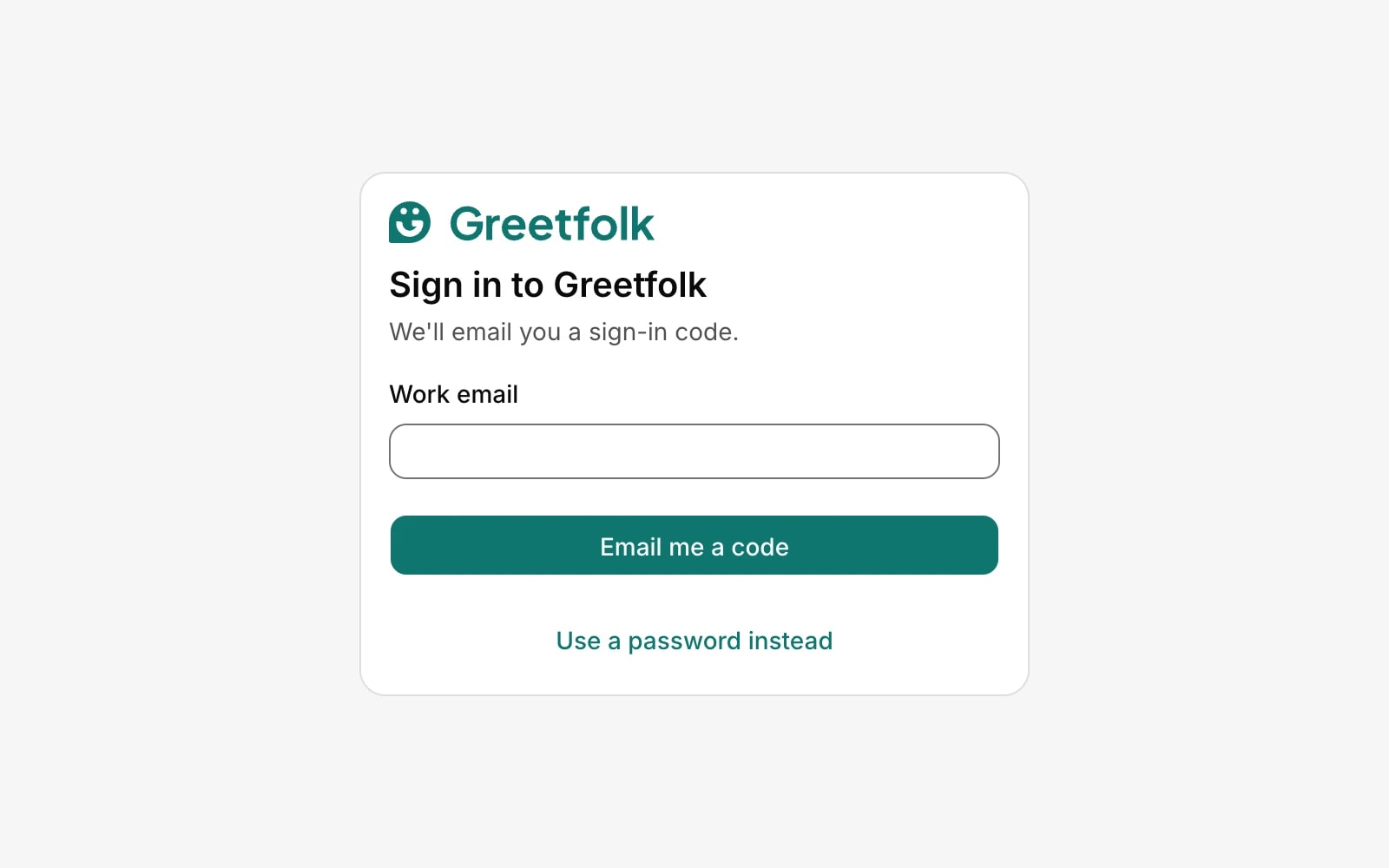
Choose Sign in at the top of greetfolk.com. Type your work email and click Email me a code. Type the code from the email into Sign-in code and click Sign in. The code works once. Send a new code sends another, and Use a different email starts again.
2. Sign in with a password instead
If your account has a password, click Use a password instead on the sign-in page. If you forgot it, click Forgot your password?, then Email me a reset link, and open the link to choose a new one.
3. Enter your two-factor code
If two-factor authentication is on, the Two-step verification screen asks for the code from your authenticator app after your email code or password. Use a recovery code signs you in without your phone.
4. Join a team from an invitation
An owner invites you from the Team page, and you get an email with a link. Open it, type your name and accept. If another account is signed in on that device, sign out first.
5. Open the account menu
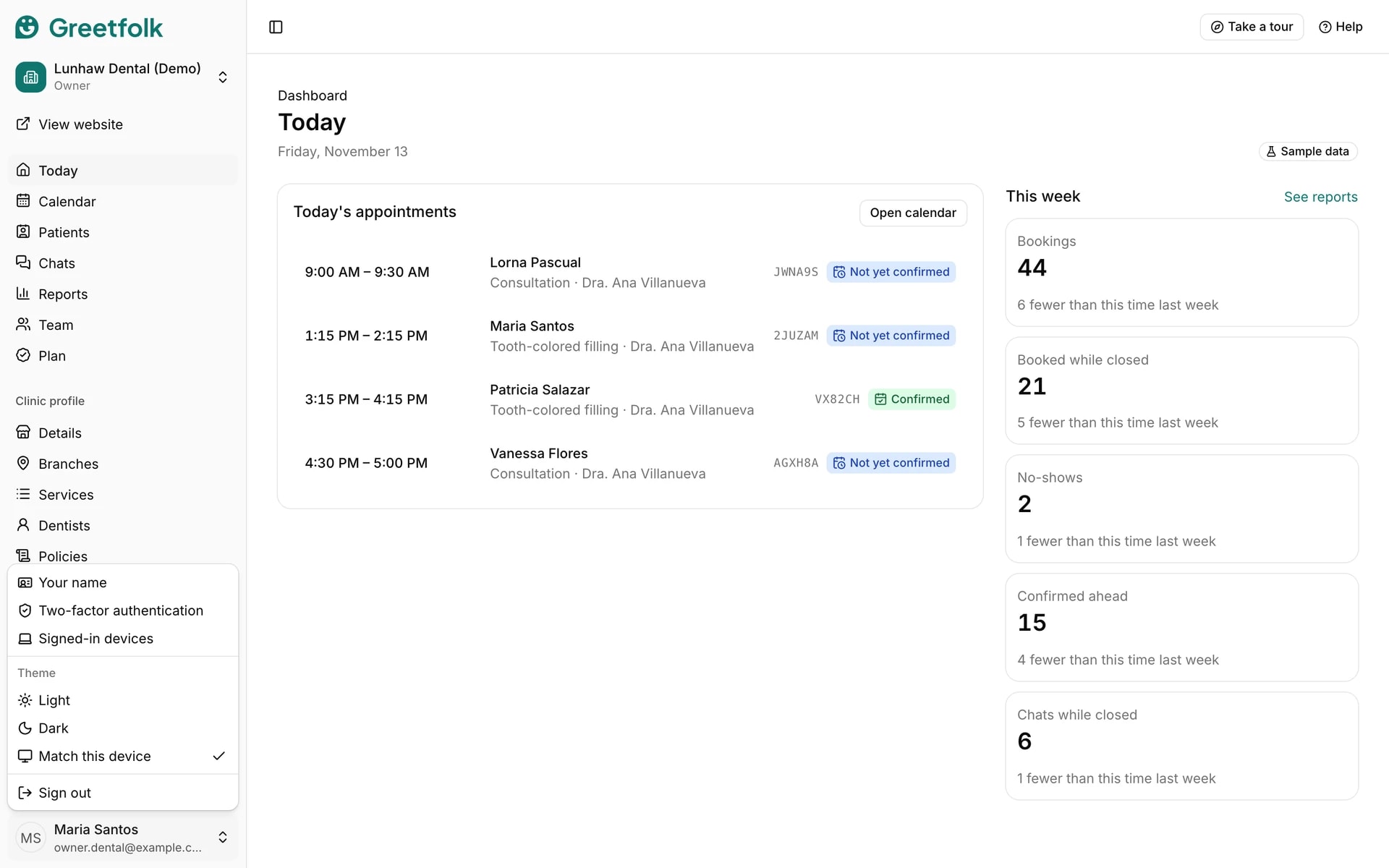
Click your email address at the bottom left of the dashboard. The menu has Your name, Two-factor authentication, Signed-in devices, the Theme (Light, Dark or Match this device) and Sign out.
6. Change your name
Open Your name, type it and click Save name. Your team sees it on the team list, with your email underneath.
7. Check your signed-in devices
Signed-in devices lists the browsers and phones where your account is signed in, with the one you are using marked This device. Sign out any device you don't recognise, or click Sign out of all other devices. Anyone on those devices has to sign in again.
8. Sign out
Click your email address at the bottom left, then Sign out. On a shared computer, sign out when you finish.