Today
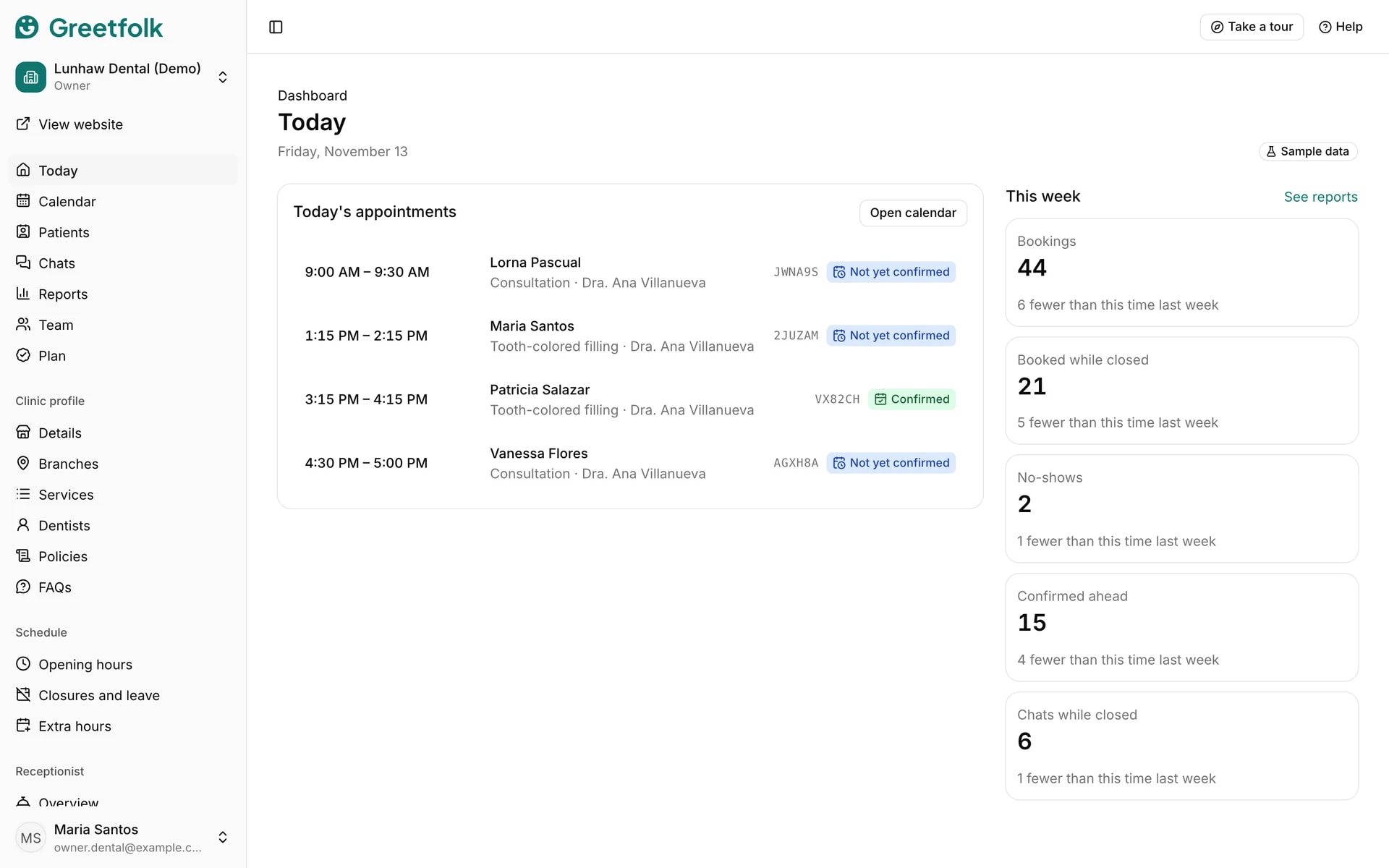
Today is the first page after you sign in: every appointment of the day in time order, the next one outlined, and this week's numbers beside it.
The screenshots show a demo business with made-up bookings and chats.
1. Read the day's list
Each row shows the time, who is coming, the service, the provider, the booking reference and the status. The outlined row with the Next badge is the next appointment. The list keeps the business's own time, so a team member in another time zone sees the same hours as the front desk.
2. Know what each status means
Not yet confirmed: booked, and the client hasn't confirmed yet. Confirmed: the client confirmed from the reminder email or the front desk marked it. Arrived: checked in at the front desk. Completed: the visit is over. No-show: the client didn't come. Cancelled appointments leave the list.
3. Open an appointment
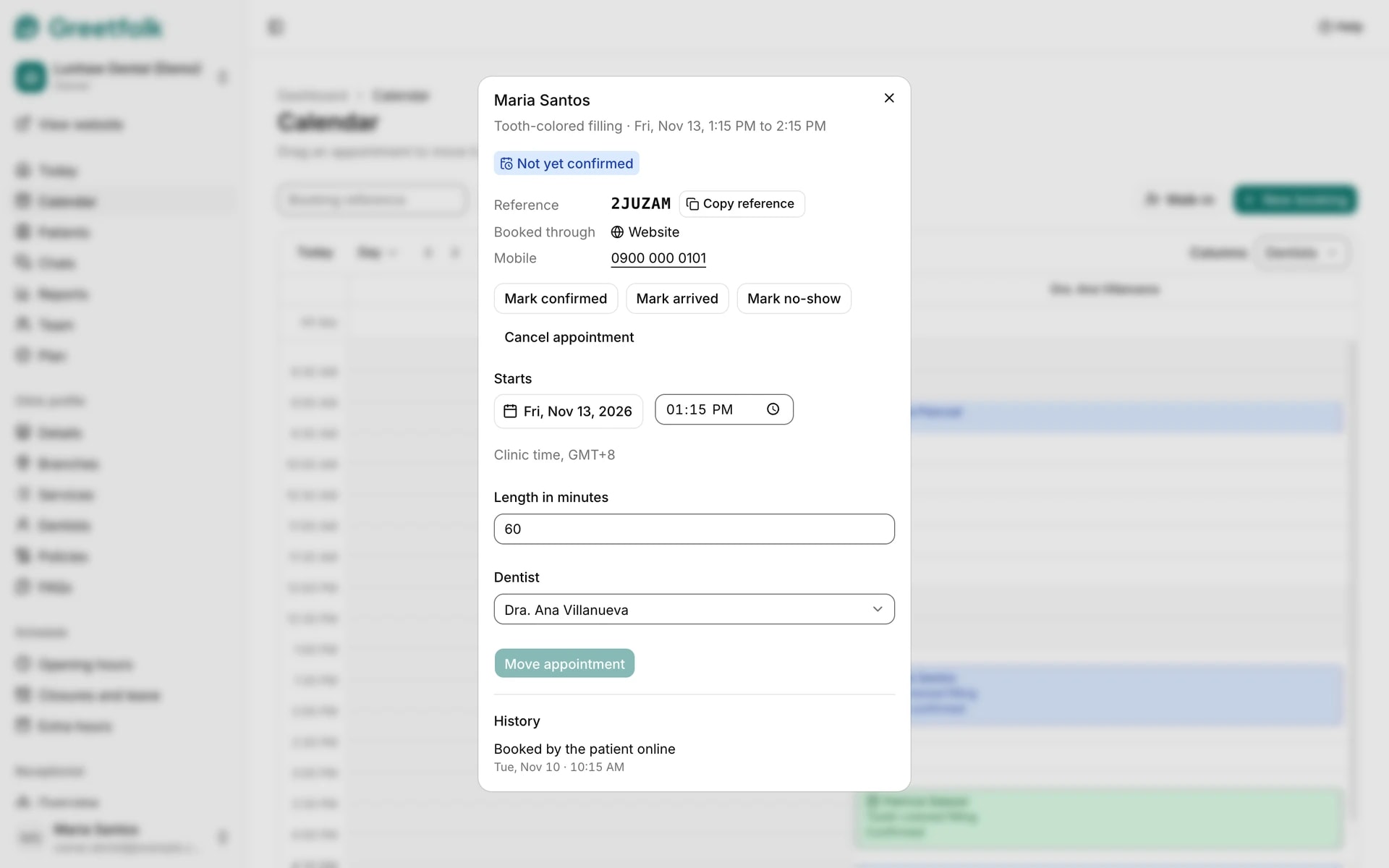
Click a row, or Open calendar, to open the Calendar on that day. The calendar is where you check people in, move or cancel an appointment, and read its history.
4. Read this week's numbers
This week counts bookings, bookings made while you were closed, no-shows, bookings confirmed ahead and chats while closed, each against the same point last week. See reports opens Reports with the full numbers. Plans without reports don't show this part.
5. Let the list refresh itself
While the tab is open, Today reloads every 30 seconds, so a booking made on your website or in chat shows up on its own. A hidden tab waits and refreshes as soon as you come back.
6. See why a provider sees fewer rows
A team member who is linked to a provider sees only their own appointments, under the heading Your appointments today. Owners and staff see everyone's.